🪄 如何修改自己的拍摄素材?
分享链接 · https://openimages.ajiang.me/p/2074865509951054017/
composition · multi-panelquality_flags · embedded-textquality_flags · screenshot-uisubject_type · charactersubject_type · ui-screenusage · social-post
提示词(原文,逐字保留)
🪄 How Do I Alter My Own Footage?
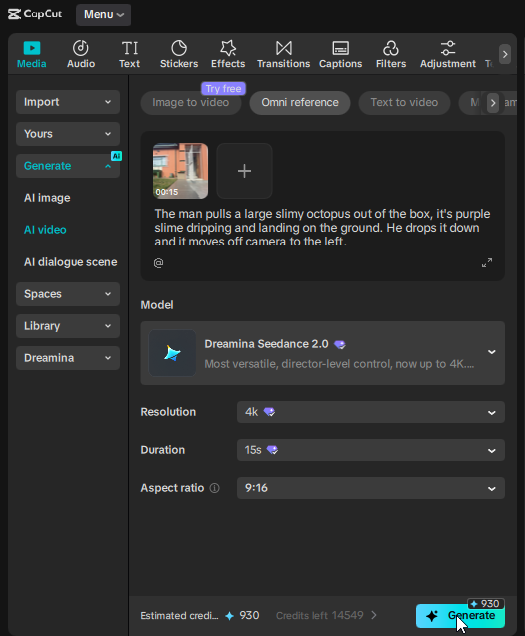
It's simple, if you're using @capcutapp, go to Generate, AI Video, Omni Reference, upload your video, select Dreamina Seedance 2.0, choose a resolution and duration, type your prompt describing what happens and click on Generate.
BONUS TIP - Even if your footage was less than 15 seconds, you can still select 15 seconds, thus making your edited footage even longer than the footage you filmed.
Another tip is that Seedance 2.0 can change the motion, it does not copy it 1 to 1 in relation to the original video BUT if you try this at the start of your prompt it can follow it a lot more closely. You can say "Keep the scene the same" or a slightly more detailed instruction "Preserve exactly: all camera angle, framing, motion, lighting, and background environment. If a character is present preserve their identity."
If you know any other solid tips to keep the motion almost 1 to 1, feel free to share in the comments.
#CapCutVideoStudio #CapCutSeedance2 #CapCutCPP
中文译文
🪄 如何修改自己的拍摄素材?
很简单,如果你使用的是 @capcutapp,进入「生成」,选择「AI 视频」、「Omni Reference」,上传你的视频,选择 Dreamina Seedance 2.0,挑选分辨率和时长,输入描述画面变化的提示词,然后点击「生成」即可。
额外小技巧 —— 即便你拍摄的素材不到 15 秒,你仍然可以选择 15 秒,这样编辑后的素材时长会比原片更长。
另一个小技巧是,Seedance 2.0 会改变画面运动,它并不是 1:1 复制原视频的运动,但如果你在提示词开头加入相关指令,它就能更贴近原片的运动。你可以说「Keep the scene the same」,或者使用更详细的指令:"Preserve exactly: all camera angle, framing, motion, lighting, and background environment. If a character is present preserve their identity."
如果你还知道其他能让运动几乎 1:1 还原的实用技巧,欢迎在评论区分享。
#CapCutVideoStudio #CapCutSeedance2 #CapCutCPP
来源与署名
原文由 @MrDavids1 发布在 X:查看原推文。 本页逐字保留原文并提供机器翻译的中文解读;版权归原作者所有。
同工具的更多提示词
- 风格:超现实电影级 FPV(第一人称视角)季风风暴飞行 创建一段 15 秒的超现实电影级 FPV 无人机视频,场景为孟买极端季风天气下的印度门,使用所附图像作…@CurieuxExplorer
- Seedance 2.0 提示词 将上传的图片作为精确的起始帧。 15秒,16:9,24fps。 一个安静的夜间超市内部。顾客们正在蔬菜区前排队结账。 保留起…@by2lGwfvhOkrAV2
- 以 @[character ref] 作为 C1 最终外观与着装的唯一参考来源,将其转化为风格化 3D。 一个连续发展的主镜头,无可见剪辑。一颗虚拟广角镜头…@aimikoda
- 惊艳的未来感时尚达人,大胆的妆容和服饰,站立于黑暗虚空中,背景快速充满动感霓虹激光,迸发动态彩色爆发将她推入飞行模式,一条与她发色相配的披风魔法般浮现,随后她…@MystiqueLicorne
- Seedance 2.0 Mini 360 度动画提示词: CHARACTER(角色):精瘦健壮的年轻男性足球运动员,中深棕色肌肤,年轻的面容,富表现力的眼睛…@Raul_IA_Prod
- 请翻译此源提示以供阅读和检索。请仅调用 translate_prompt 一次。原样保留 URL、JSON 键、命令标志、括号、占位符、代码和参数值。不要总结…@0kncn